
Choose Your Active Team
Your active team determines which roster, schedule, lineups, and pitching information you are working with. Check the team name before making changes, especially if you coach multiple teams or seasons.
Last reviewed
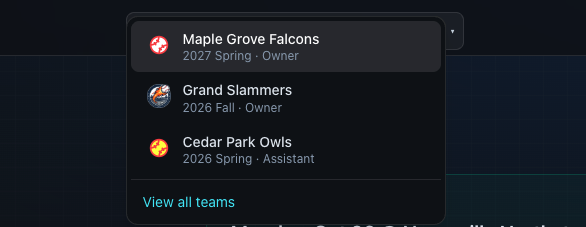
Switch your active team#
- Open the team switcher showing the currently selected team.
- Select the team you want to work on.
- Check the team name before continuing.
The switcher identifies teams you own and teams you assist with. Switching teams does not change your role or permissions.
If you do not see the team you need, open My Teams to find it. Check the season as well as the team name—teams from different seasons have separate rosters, schedules, and records.
A team is missing?#
Make sure you are signed in to the correct Inningly account. If you were invited as an assistant, you must accept the invitation before the team becomes available.
See Invite and manage assistant coaches for help joining a team.
For a new season, create a new seasonal team and copy returning players rather than reusing the previous season’s workspace.
Related articles
- Create a Team Create a team workspace for managing your roster, schedule, lineups, and pitching throughout the season.
- Edit Team Information and Settings Team Settings contains your team’s details, default lineup settings, pitching-rest settings, plan, and coaching staff.
- Set Up Your Team for a New Season Create a team for the new season and bring returning players forward without rebuilding your roster from scratch.
- Manage Your Account and Password Open My Account to update your profile, manage sign-in methods and your password, or review your personal coach-account subscription.
- Invite and Manage Assistant Coaches Invite assistant coaches to help manage your team’s roster, schedule, lineups, and pitching. Each assistant uses their own Inningly account, while you remain the team’s owner.