
Invite and Manage Assistant Coaches
Invite assistant coaches to help manage your team’s roster, schedule, lineups, and pitching. Each assistant uses their own Inningly account, while you remain the team’s owner.
Last reviewed
Before you start#
- Sending invitations requires an Inningly Plus team. The invited coach does not need a paid personal account.
- The assistant must sign in with an account whose verified email matches the invitation.
- You can own some teams and assist with others using the same account.
See Understand Free and Plus for team-plan details.
Invite an assistant coach#
- Select the correct team and open Team Settings.
- Find Coaching Staff.
- Enter the coach’s email address and select Send invitation.
A new row appears with a Pending label. The coach receives an email containing a link to review the invitation. Sending an invitation does not give them access until they accept.
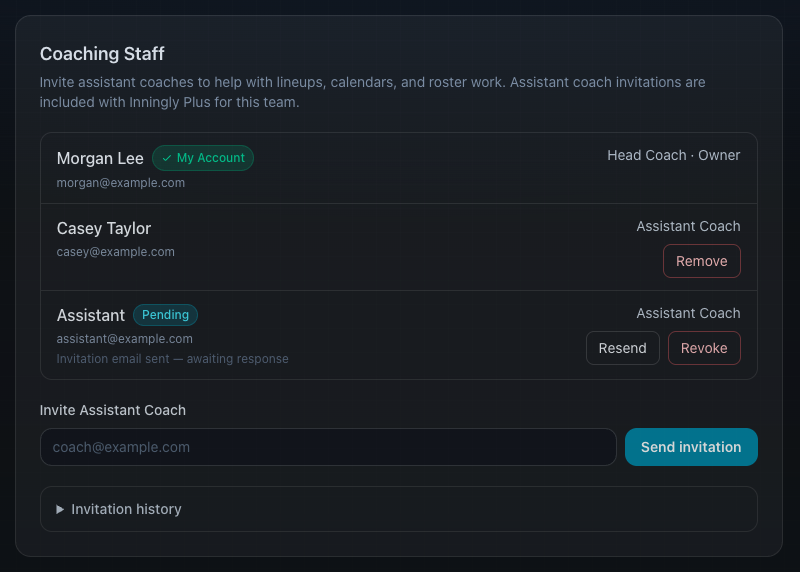
While an invitation is pending:
- Resend sends a replacement invitation email. The previous link stops working. A short wait period applies between sends.
- Revoke cancels the invitation after confirmation. The coach can no longer accept it.
- Invitations expire after 7 days. Resend an expired invitation if the coach still needs access.
After an assistant accepts, refresh Team Settings to see the assistant’s active staff row. Remove replaces the pending invitation controls. You can expand Invitation history to review past responses and their timestamps.
Accept or decline an invitation#
If another coach invited you:
- Open the invitation link in your email.
- Select Sign in, or Create account if you are new to Inningly.
- Use the email address that received the invitation. Complete email verification if prompted.
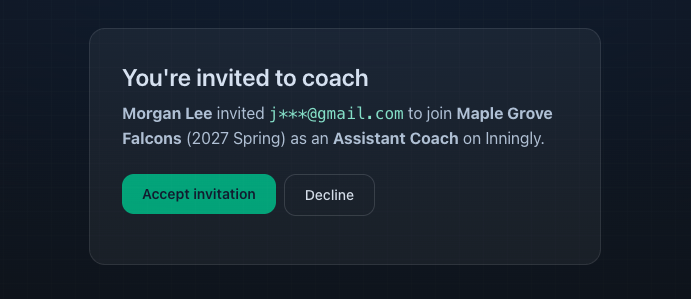
- Review the team name and select Accept invitation or Decline.
New accounts may first see a welcome screen. Select Review team invite to continue.
You can also find pending invitations on Home when signed in with the matching verified email. After accepting, you will arrive at the team overview.
You do not need to create a separate copy of the team. Accepting adds the existing team to your account.
What assistants can do#
Assistants can work with the team’s roster, calendar, lineups, batting orders, pitching plans, and pitcher workload records. They use the features available through the team’s plan.
The owner remains responsible for team settings, coaching-staff management, ownership, and billing. Accepting an invitation does not transfer ownership.
Use the team switcher to move between teams. Owner and assistant indicators help identify your relationship to each team.
Remove an assistant or leave a team#
For the team owner#
Open Team Settings → Coaching Staff, select Remove beside the assistant, and confirm.
Their access ends, but their existing team work and records remain with the team. Removing an assistant does not delete their Inningly account.
For an assistant#
Open My Account and find Teams I assist with, below Profile Settings. Select Leave team beside the appropriate team and confirm.
Leaving one team does not affect your access to other teams. Ask the owner for a new invitation if you need to rejoin.
Trouble with an invitation?#
- The email has not arrived: Check spam or junk, and ask the owner to confirm the address. The owner can check the pending row for a sending error and resend when available.
- You entered the wrong email when inviting someone: Revoke that invitation and send a new one to the correct address.
- The invitation says you are using the wrong account: Select Sign in with another account, then sign in using the invited email.
- Your email is not verified: Follow the verification instructions. Use Resend verification email on the invitation screen if needed.
- The link is expired, revoked, or no longer valid: Ask the owner for a new invitation or replacement link. If several invitation emails exist, use the newest one.
- Sending or resending is temporarily blocked: Wait and try again later. Inningly limits invitation emails to prevent repeated sends.
Related articles
- Edit Team Information and Settings Team Settings contains your team’s details, default lineup settings, pitching-rest settings, plan, and coaching staff.
- Understand Free and Plus Compare Free and Plus team capabilities to choose the level that fits how you use Inningly.
- Choose Your Active Team Your active team determines which roster, schedule, lineups, and pitching information you are working with. Check the team name before making changes, especially if you coach multiple teams or seasons.
- Manage Your Account and Password Open My Account to update your profile, manage sign-in methods and your password, or review your personal coach-account subscription.