
Sync your Inningly Calendar
Bring an external schedule into Inningly so games and practices stay available for team planning.
Last reviewed
Inningly can import your team schedule from the following platforms, using the calendar subscription link provided by those services.
- GameChanger
- SportsEngine
Don’t see one you use? Request support for another platform.
This is a one-way import into Inningly. Changes made in Inningly do not transfer back to GameChanger or SportsEngine, and Inningly does not publish a calendar link for another service to follow.
Before you begin#
You will need:
- An active Inningly team
- An Inningly Plus plan for that team
- A GameChanger or SportsEngine calendar subscription link
You can save a calendar link on a Free team, but Sync now requires Inningly Plus. See Understand Free and Plus for more information.
Inningly supports one GameChanger calendar connection and one SportsEngine calendar connection per team.
Find your external calendar link#
Open your team in GameChanger or SportsEngine and find its calendar subscription, iCal, or webcal link. The exact location may vary as those services update their apps.
The copied link will typically begin with webcal:// or https://.
Inningly expects:
- A GameChanger link containing
api.team-manager.gc.com - A SportsEngine link containing
ical.sportsengine.com
This calendar link is different from copying a GameChanger roster. Calendar syncing imports scheduled events; it does not add players to your Inningly roster.
Add the calendar to Inningly#
- Open the correct Inningly team and select Calendar.
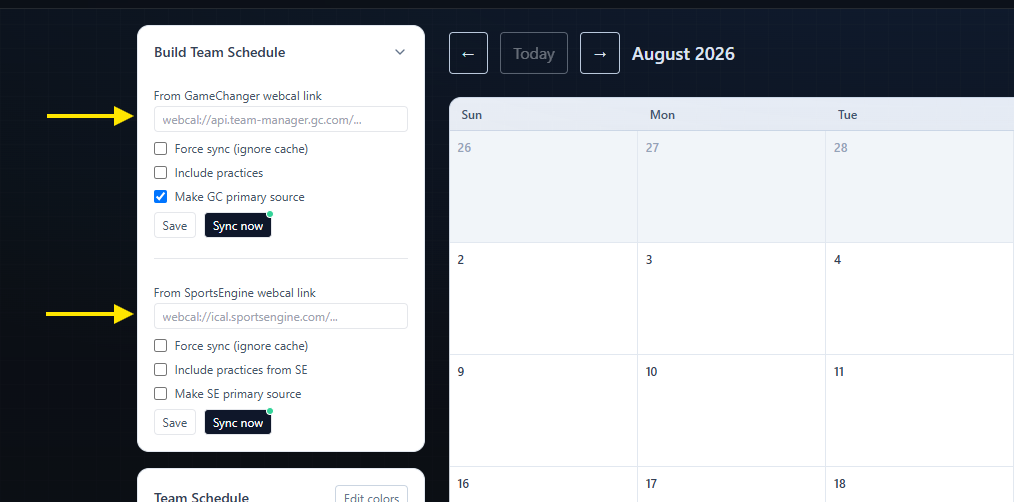
- Expand Build Team Schedule.
- Paste the link into From GameChanger webcal link or From SportsEngine webcal link.
- Choose whether to include practices.
- Choose whether the provider should be the team’s primary schedule source.
- Select Save to store the link and settings.
- Select Sync now to import the schedule.
Selecting Sync now also saves the link and current settings, so you can use it directly after completing the form.
Choose which events to include#
By default, Inningly imports game-like events from the external calendar.
Select Include practices for GameChanger or Include practices from SE for SportsEngine when you also want practice events added to the Inningly calendar. Other types of external events may be skipped.
After syncing, review the imported events to confirm that opponents, locations, start times, and home or away designations were interpreted correctly.
Choose a primary schedule source#
A team can connect both GameChanger and SportsEngine. When it does, one provider should be the primary source.
Select Make GC primary source or Make SE primary source for the calendar you trust to supply the team’s main schedule information. If no primary source has been selected, the first saved connection becomes primary automatically.
When both providers contain what appears to be the same game at approximately the same time, information from the primary source takes precedence. The other source can fill in details that are missing.
Review the imported schedule#
After a successful sync, Inningly reports how many events were added, updated, or left unchanged.
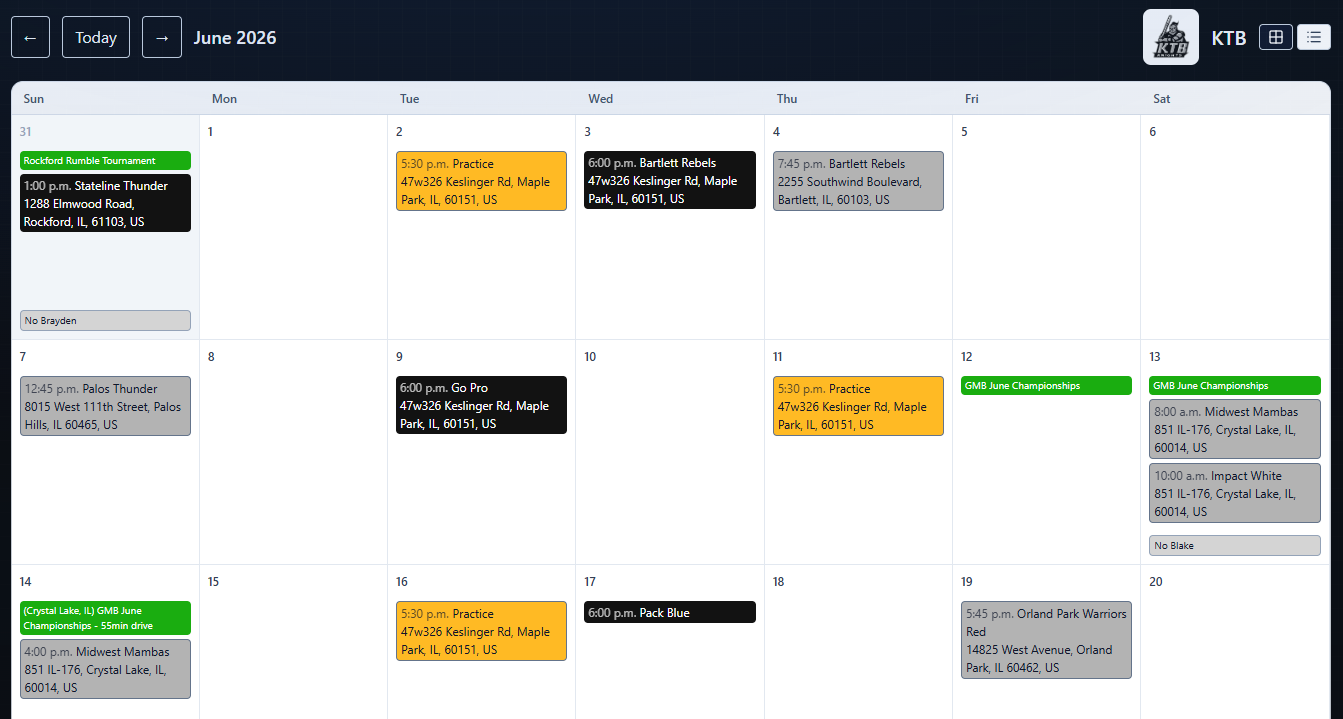
Imported events appear on the built-in Team Schedule calendar as:
- Home Game
- Away Game
- Practice
The games can then be used when creating lineups, recording pitching workloads, and preparing for upcoming games.
Refresh the schedule when it changes#
Inningly does not refresh the external calendar automatically. When the GameChanger or SportsEngine schedule changes:
- Return to Calendar.
- Expand Build Team Schedule.
- Select Sync now for the connected provider.
Inningly updates events it can match, adds new events, and leaves unchanged events alone.
If Inningly reports No changes on the provider since your last sync (cached) but you expect an update, select Force sync (ignore cache) and run Sync now again.
Understand changes and cancellations#
Calendar syncing adds and updates events, but it does not automatically remove an Inningly game when that event disappears from the external calendar. Delete the outdated game manually if it is no longer needed.
If the external provider marks an event as canceled, Inningly marks the matching game as canceled rather than deleting it.
You can edit an imported game in Inningly. However, fields controlled by the primary external source may be replaced the next time you sync. For lasting changes, update the event in GameChanger or SportsEngine first and then sync again.
Deleting an imported game from Inningly does not remove it from the external calendar. If the event remains in the external feed, a later sync may import it again.
Access and limits#
The calendar connection belongs to the Inningly team.
Expired teams can still display their calendars, but their schedule-building and syncing controls are no longer available.
If the link is rejected, confirm that you copied the calendar subscription link from the correct provider—not the address of a normal webpage.
Related articles
- Add Games and Practices Add team events to your team calendar so you can prepare its lineup, batting order, and pitching plan.
- Create a Team Create a team workspace for managing your roster, schedule, lineups, and pitching throughout the season.
- How Inningly works with GameChanger Learn how Inningly complements GameChanger by helping coaches plan schedules, protect pitchers, and prepare game-ready lineups.