
Add Games and Practices
Add team events to your team calendar so you can prepare its lineup, batting order, and pitching plan.
Last reviewed
Your team calendar can include games, practices, and other events. You can add them individually in Inningly or import an existing schedule from another platform.
Manual entry is available for both Free and Inningly Plus teams. If your full schedule already exists in another platform, see Sync your Inningly calendar instead.
Open the team calendar#
Open the correct Inningly team and select Calendar.
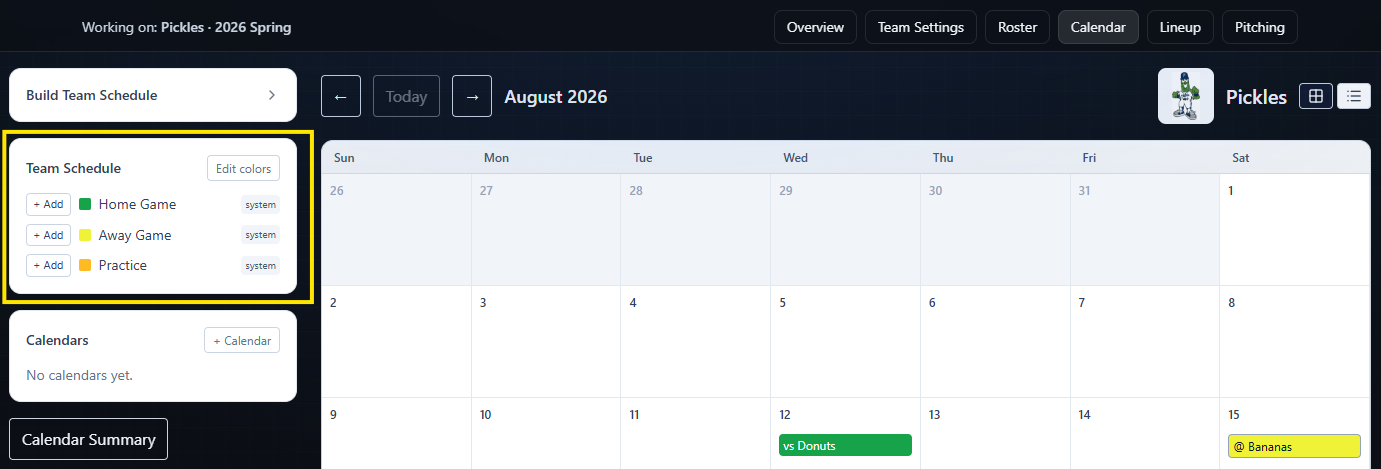
Under Team Schedule, you will find separate + Add controls for:
- Home Game
- Away Game
- Practice
These quick-add controls automatically select the corresponding schedule-item type.
You can also select the + inside a calendar day. This opens Add Item, where you can choose Game or Event and begins with that date selected.
Add a game#
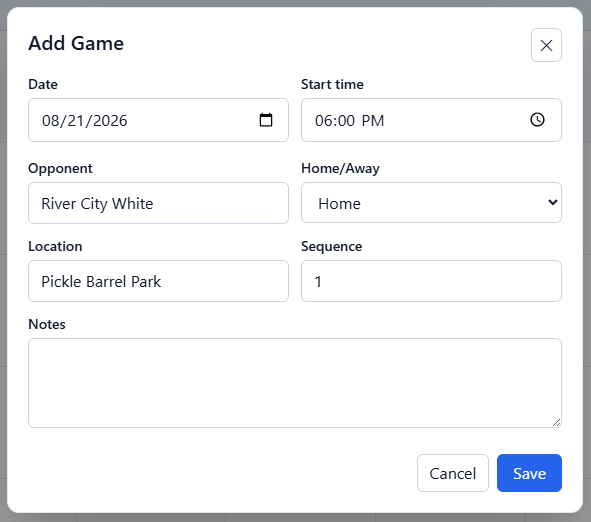
Select + Add beside Home Game or Away Game. The Add Game window opens with the corresponding home or away designation selected.
Complete the game information:
- Date: Required
- Opponent: Required
- Start time: Optional
- Home/Away: Confirm whether your team is home or away
- Location: Optional
- Sequence: Used to distinguish multiple games against the same opponent on the same date
- Notes: Optional
Sequence defaults to 1. For a doubleheader, use 1 for the first game and 2 for the second.
Note
If you opened Add Item from a calendar day instead, change Type to Game to display these fields.
Select Save when the game information is complete. The game appears on the built-in Team Schedule as vs the opponent for a home game or @ the opponent for an away game.
Add a practice#
Select + Add beside Practice.
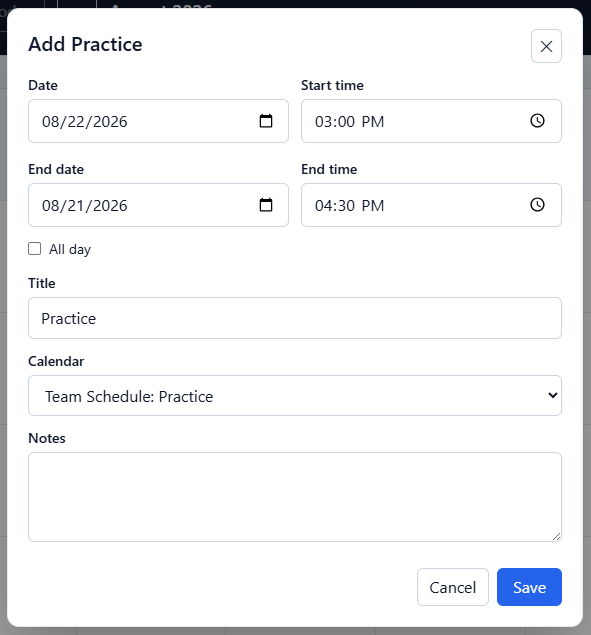
The Add Practice window begins with:
- Practice as the title
- Today as the start and end date
- All day selected
- Team Schedule: Practice selected as the calendar
Change the title or date as needed. If the practice has a specific time, clear All day and enter the start and end times. You can also add optional notes.
Select Save to add the practice.
Keep practices on the Team Schedule#
A practice saved to Team Schedule: Practice becomes available to Inningly’s lineup and pitching tools.
An event saved to a custom calendar remains visible on the calendar, but it does not become a selectable game or practice in those preparation workflows.
If you use the + Add control beside Practice, Inningly selects the correct calendar automatically.
Add other calendar events#
To add a meeting, tournament deadline, team activity, or another non-game item:
- Select the + on its calendar date.
- Leave Type set to Event.
- Enter a Title, start date, and end date.
- Choose the calendar where the event belongs.
- Add optional times and notes.
- Select Save.
Use a custom calendar when the item is useful for scheduling but does not need player availability, a lineup, or pitching information.
Inningly does not currently provide a repeating-event option for manually created practices or events. Add each item separately or sync an existing schedule when another supported platform already contains the complete series.
Edit a game or practice#
Select an existing item on the calendar to open Edit Game or Edit Event.
You can update the game’s date, time, opponent, home or away designation, location, and notes. Practice and event details—including title, dates, times, calendar, and notes—can also be updated.
The item’s Type is locked after creation. A game cannot be changed into an event, or an event into a game. If the wrong type was created, delete the item and create it again using the correct type.
Select Delete and confirm Delete this item? when the game, practice, or event should be removed.
Why games and practices matter#
A saved game becomes the anchor for preparing and recording what happens on that date.
From the selected game, you can:
- Confirm which players are available
- Create and save a defensive lineup
- Prepare a batting order
- Build a pitching plan
- Record pitcher workload connected to the game
- Share the finished lineup
Practices saved to Team Schedule: Practice can also be selected for lineup preparation and pitching records.
You do not need to complete those steps when adding the schedule. Once the game or practice exists, you can return as information becomes available and prepare for it over time.