
Review Pitcher Availability
Check which pitchers are available for a specific game and review the workload affecting each player.
Last reviewed
Pitcher availability is always tied to a specific date. A player who requires rest today may be available for a game later in the week.
Inningly provides two ways to review availability:
- Use the Pitching tab to evaluate the entire team for today or another date.
- Use the Lineup tab to review availability for a specific scheduled game.
Availability is calculated from the team’s rest schedule and its saved pitcher-workload history.
Before you begin#
The team must have a Rest Schedule selected before Inningly can calculate availability.
If the Pitching tab displays Set Up Pitcher Rest Schedule, select Set Rest Schedule →, choose the appropriate schedule in Team Settings, and save your changes.
Inningly evaluates every player on the team roster. Players do not need to be identified as pitchers before appearing in availability results.
Players without any recorded workload are treated as available. For useful guidance, make sure all applicable games, practices, bullpens, and other throwing activity have been recorded.
See Record pitcher workload for the workload-entry workflow.
Review availability for any date#
Open the team and select Pitching.
The page defaults As of to today. To review another date:
- Select the date beside As of.
- Select Update.
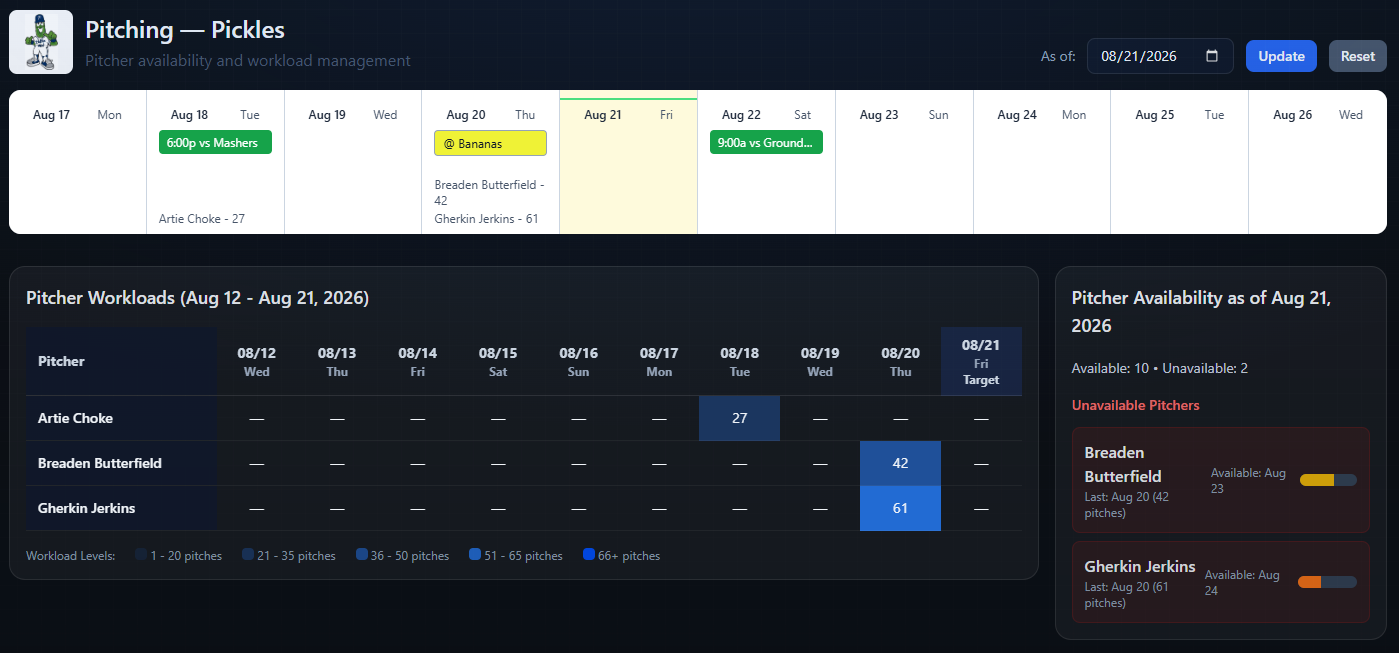
- Find Pitcher Availability as of [date] on the right side of the page.
Use the date of the upcoming game when deciding who will be available for that game. You can move As of forward to preview availability later in the week or season.
The workload heatmap updates with the selected date and shows recent workload leading into it.
Read the availability summary#
The Pitching tab displays:
- Available: The number of roster players eligible to pitch on the selected date.
- Unavailable: The number of players still completing required rest.
When one or more players are unavailable, the Unavailable Pitchers section shows:
- The player’s name
- Last: The date and amount of the most recent applicable workload
- Available: The next date the player is expected to become available
- A colored rest-progress bar
If no players require rest, the panel displays All Pitchers Available.
The Pitching tab lists unavailable players by name but summarizes available players as a count. To see the complete roster separated into named Available and Unavailable lists, use the Lineup tab for a scheduled game.
Review availability for a specific game#
The Lineup tab provides the full availability split for the date of a selected game.
- Open the team and select Lineup.
- Find the upcoming game in the strip calendar.
- Select the game chip.
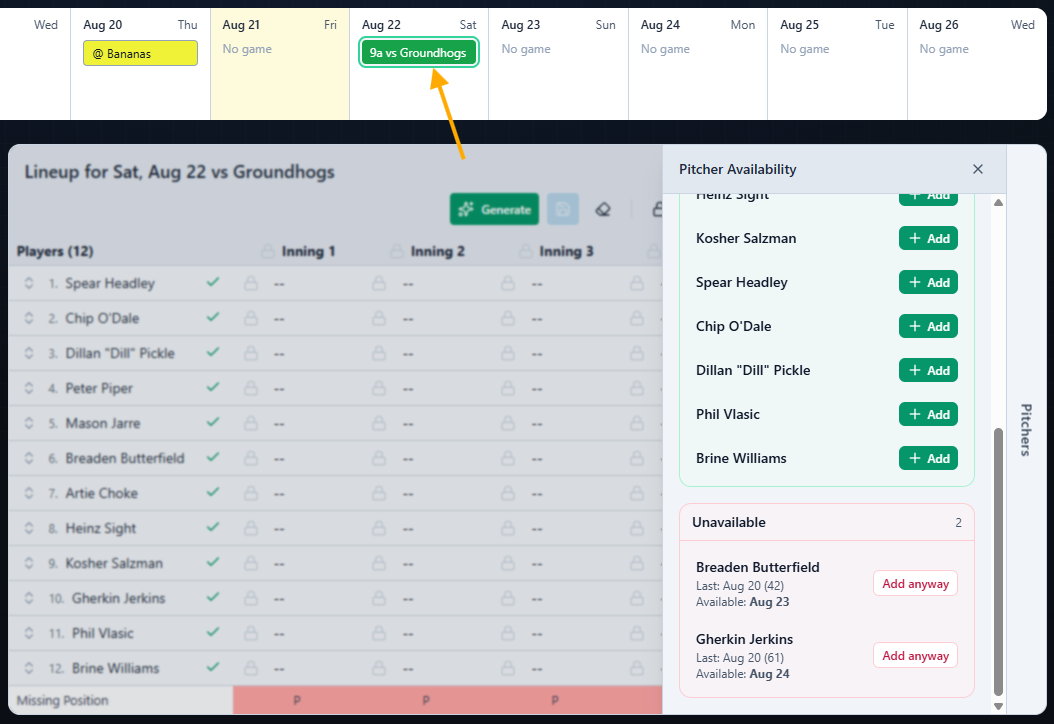
- Select the vertical Pitchers control on the right side of the defensive lineup grid.
The Pitcher Availability drawer opens for the selected game’s date. Confirm the date shown after For near the top of the drawer.
The drawer separates the roster into:
- Available: Players eligible under the current rest schedule on the game date
- Unavailable: Players whose required rest continues through the game date
Unavailable players also show their most recent workload and the date they are expected to become available.
Changing the selected game refreshes the drawer using the new game’s date.
Reviewing availability is not creating a pitching plan#
The Pitcher Availability drawer also contains a Pitching Plan section.
Reviewing the Available and Unavailable lists answers:
Who is eligible to pitch for this game?
Creating a pitching plan answers:
Which pitchers do I intend to use, and during which innings?
Simply opening the drawer and reading the availability lists does not change or save anything.
Selecting Add moves an available player into the pitching plan. Selecting Add anyway moves an unavailable player into the plan but does not change their availability status or remove the rest guidance.
You can use the availability information while creating a defensive lineup, but a lineup or pitching plan is not required to review who can pitch.
If availability does not look right#
First confirm that you are reviewing the correct date:
- Check As of on the Pitching tab.
- Check the selected game and For date in the Lineup drawer.
Then review the pitcher’s Last workload information. Availability can be incorrect when a workload is missing, duplicated, assigned to the wrong player, or recorded with the wrong date or amount.
Use Record pitcher workload to add missing activity. Use Edit or remove pitcher workload to remove an incorrect or duplicate record and add it again correctly.
Changes to workload history can immediately alter the player’s next available date. Understand pitch limits, required rest, and availability
Related articles
- Record Pitcher Workload Record a pitcher’s workload after an appearance so Inningly can calculate rest and future availability.
- Edit or Remove Pitcher Workload Correct an inaccurate pitching appearance or remove a pitch record that should not affect availability.
- Understand Pitch Limits, Required Rest, and Availability Understand how recorded pitch counts and rest rules determine the availability Inningly shows for each pitcher.