
Edit or Remove Pitcher Workload
Correct an inaccurate pitching appearance or remove a pitch record that should not affect availability.
Last reviewed
Pitcher workloads cannot currently be edited after they are saved.
To correct the pitcher, date, source, game, or workload amount, remove the incorrect record and add a new workload with the correct information.
Find the workload#
- Open the correct Inningly team and select Pitching.
- Find the workload date in the strip calendar.
- Select that date to open Add Pitcher Workload.
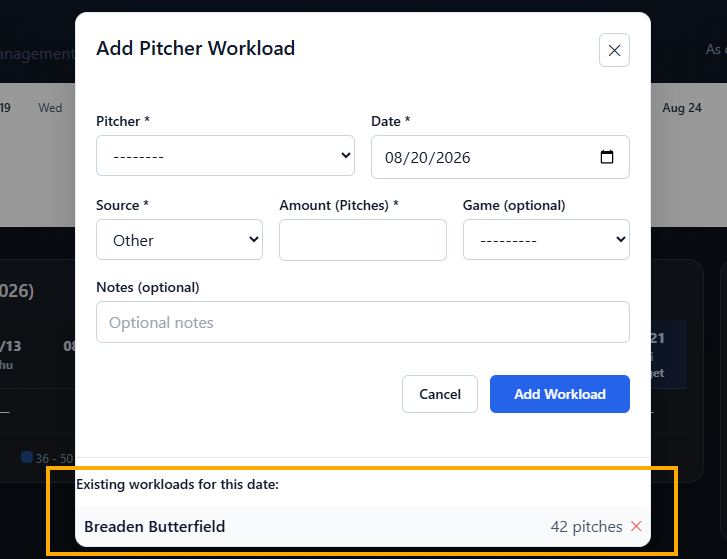
- Scroll to Existing workloads for this date: at the bottom of the window.
If the date is not visible, change As of to the workload date, select Update, and then select the date in the strip calendar.
A rest schedule must be selected for the team before the strip-calendar dates will open the workload window.
Remove the workload#
Under Existing workloads for this date:, find the record using the player name and workload amount.
Select the red ✕ on the right side of the record. When Inningly asks Are you sure you want to delete this workload?, confirm the deletion.
After deletion, the page reloads and the workload is permanently removed from:
- The strip calendar
- The Pitcher Workloads heatmap
- The selected date’s existing-workload list
- Pitcher-availability calculations
There is no undo after confirming the deletion.
Add the corrected workload#
If the throwing activity still needs to be recorded, open Add Pitcher Workload again and enter the corrected pitcher, date, source, amount, and optional game or notes. See Record pitcher workload for details.
Verify that the corrected amount appears on the intended date after saving.
Remove duplicate records#
Inningly permits more than one workload for the same pitcher on the same date. This supports situations where a player throws during more than one activity, and Inningly adds those records together for that day.
If the same appearance was entered twice, remove only the duplicate. Confirm the player and amount carefully before selecting the red ✕.
Understand the effect on availability#
Deleting or replacing a workload causes Inningly to recalculate pitcher availability when the page reloads.
Removing workload may shorten the displayed rest period. Adding a corrected, larger workload may extend it. Review the pitcher’s availability again before preparing for a later game. Also, Understand pitch limits, required rest, and availability.
Historical and game-linked workloads can be removed using the same process. Removing a workload does not delete the associated game; it removes only that pitching record.