
Copy Players from GameChanger
Import your GameChanger roster to add multiple players to Inningly without entering each player manually.
Last reviewed
Note
Choose how to build your roster
You can add players individually, paste a roster from GameChanger, or copy players from another Inningly team. This article explains the GameChanger option.
If your roster already exists in GameChanger, you can copy its player list and paste it into Inningly instead of entering every player manually.
This is a one-time import. The roster does not automatically update when information changes in GameChanger, and changes made in Inningly do not transfer back to GameChanger.
Watch how to copy your roster#
See how to copy a player list from GameChanger, preview it in Inningly, and add the selected players to your roster.
Copy your player list from GameChanger#
Open your team in GameChanger, then click the Team tab to view the roster. Select the text on the page (does not need to be perfect), then copy it to your clipboard.
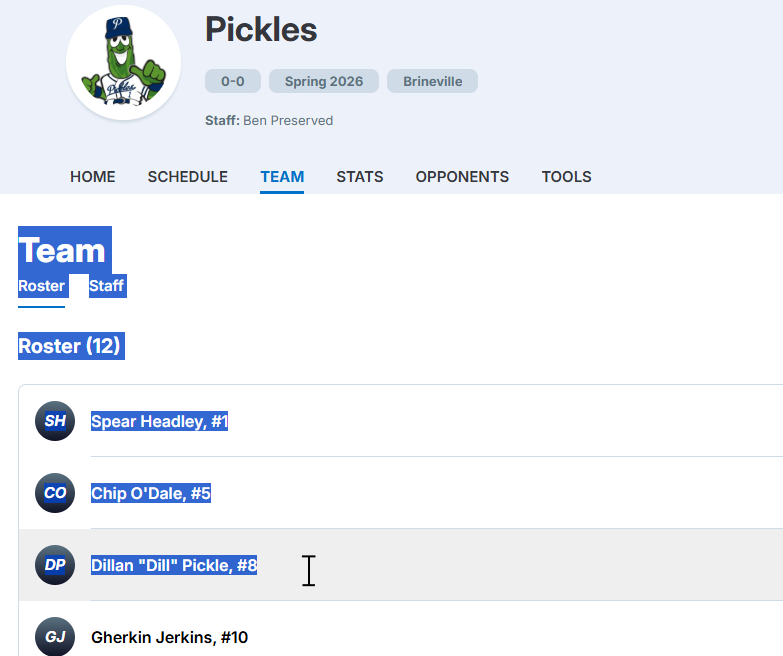
You do not need to create or upload a file. Inningly reads the text you paste and ignores common headings, player initials, and other extra labels when possible.
Go to your Inningly Roster#
- Open the correct Inningly team and select Roster.
- Select Paste from GameChanger below the roster table.
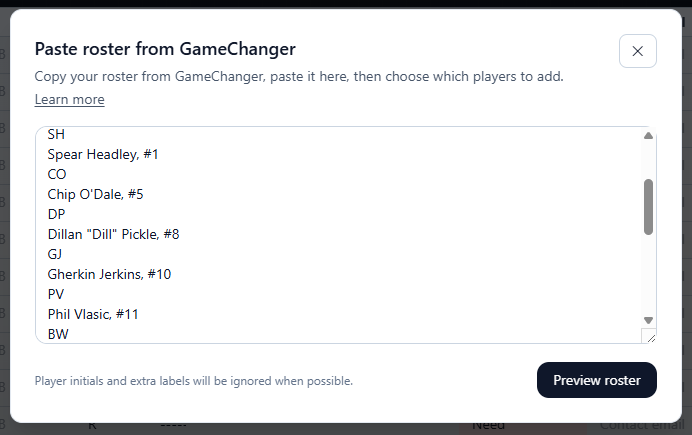
- Paste the copied roster into Paste roster text here….
- Inningly will automatically identify roster players.
Review the preview#
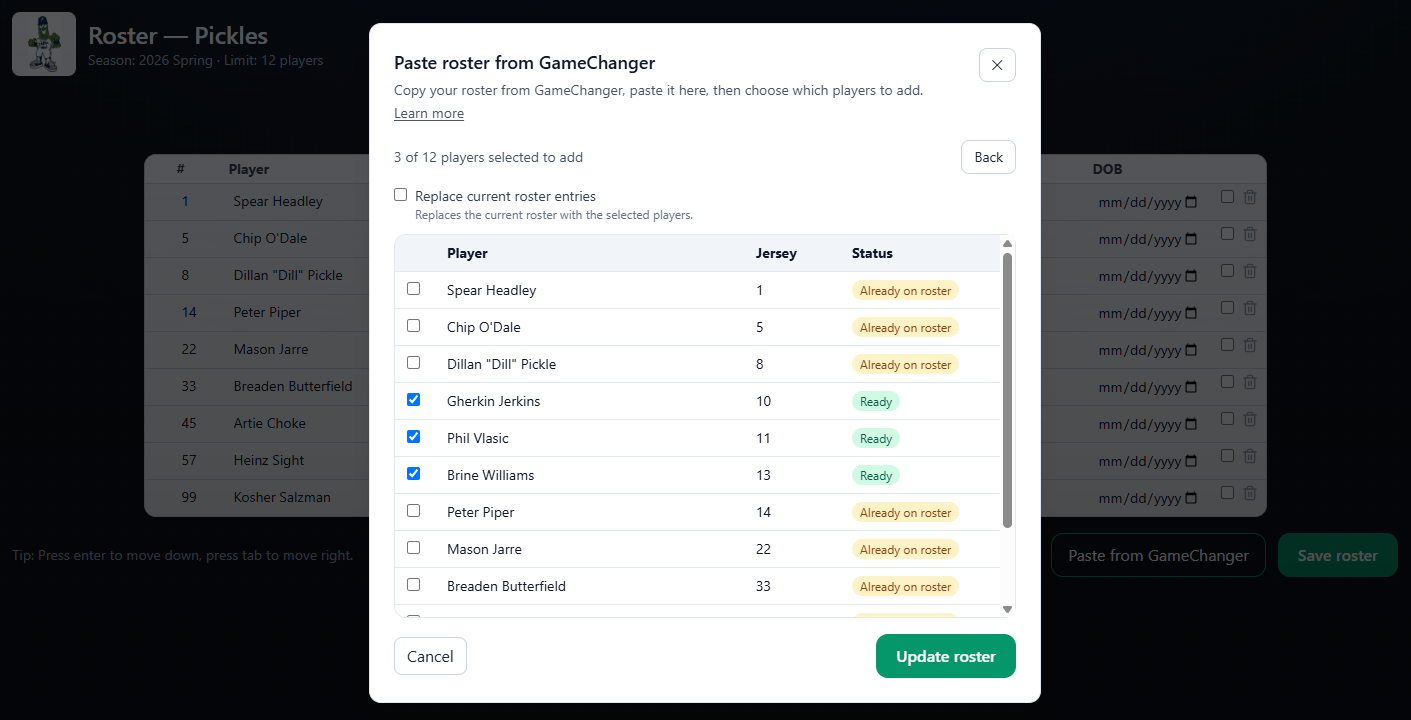
The preview shows the player name, jersey number, and import status for each recognized player.
Possible statuses include:
- Ready: The player was recognized and can be added.
- No jersey: The player was recognized without a jersey number. A jersey number is not required.
- Already on roster: A player with the same name is already on the Inningly roster. The player is unchecked by default.
- Over limit: Adding the player would exceed the team’s roster limit. The player is unchecked by default.
Existing players are matched by name, regardless of jersey number. Duplicate entries with the same name and jersey number in the pasted text are included only once.
Review the selected players and use the checkboxes to make any changes. Update roster is available when at least one player is selected.
Add players to the existing roster#
By default, Inningly adds the selected players to the roster already on the page.
- Leave Replace current roster entries unchecked to simply add to the existing roster.
- Select Update roster to push updates into the roster table.
- Review the imported names and jersey numbers in the roster table. Edit if needed.
- Select Save roster to finish saving the players.
Caution
Remember to Save
Update roster does not save an appended roster by itself. If you leave or refresh the page before selecting Save roster, the imported players may be lost.

Replace the entire roster#
Select Replace current roster entries only when you want the imported players to become the team’s complete roster.
Warning
Replacing the roster deletes every player currently on the Inningly team, including position information, preferences, contact details, and other information connected to those player records. This cannot be undone.
After you select Update roster in replace mode, Inningly saves the replacement immediately. You do not need to select Save roster afterward.
Complete the player information#
The GameChanger paste imports only each player’s name and jersey number when one is available. Review the saved roster and manually add any other information for your players, such as:
- Position preferences and restrictions
- Bats and throws
- Contact email
- Date of birth
- Team administration details
If players are missing from the preview#
If Inningly cannot recognize the pasted roster:
- Return to GameChanger and copy the player list again.
- Make sure each player appears on a separate line.
- Confirm that every line contains a player name.
- Remove unrelated text if it prevents the roster from being read.
Your team’s player limit also applies to imported players. Every Inningly team can include up to 20 players. Remove unneeded players if the preview marks them as Over limit.
Related articles
- Add Players Individually Add players one at a time when building a new roster or making a small roster change.
- How Inningly works with GameChanger Learn how Inningly complements GameChanger by helping coaches plan schedules, protect pitchers, and prepare game-ready lineups.
- Copy Players from Another Team Save time setting up a new season by copying players from an existing Inningly team.