
Add Players Individually
Add players one at a time when building a new roster or making a small roster change.
Last reviewed
Note
Choose how to build your roster
You can add players individually, paste a roster from GameChanger, or copy players from another Inningly team. This article explains the manual option.
Manual entry is useful when you are adding one or a few players or want direct control over the information saved for each player.
Open the roster#
Open the correct Inningly team and select Roster from the team navigation. You can also select Manage roster → from the team Overview.
The roster editor includes several blank rows where you can begin typing immediately. Select + Add Row if you need another row.
The player limit appears below the page heading. Every Inningly team can include up to 20 players.
Choose a roster view#
Use the view controls above the roster to show the columns you need:
- All Fields shows every available player and administrative field.
- Compact focuses on common baseball or softball information.
- Admin focuses on contact, eligibility, and team administration details.
Changing the view only hides or shows columns. It does not remove any saved information.
On smaller screens, scroll the roster table horizontally to reach additional columns.
Enter player information#
Click a blank row and enter the player’s information.
Player name is the only information required. Unused blank rows are ignored when you save the roster.
The remaining fields are optional:
- #: Jersey number
- Pos: Common positions, such as
P, C, 1B - Bats: Right, left, or switch
- Throws: Right or left
- Hat, Jersey, and Pants: Uniform sizes
- Birth Cert: Eligibility-document status
- Contact Email: Parent or player contact address
- Notes: Any other information useful to the coaching staff
- DOB: Date of birth
If you enter a contact email or date of birth, it must use a valid format before the roster can be saved.
You can press Enter to move down to the next row in the same column or Tab to move to the next field.
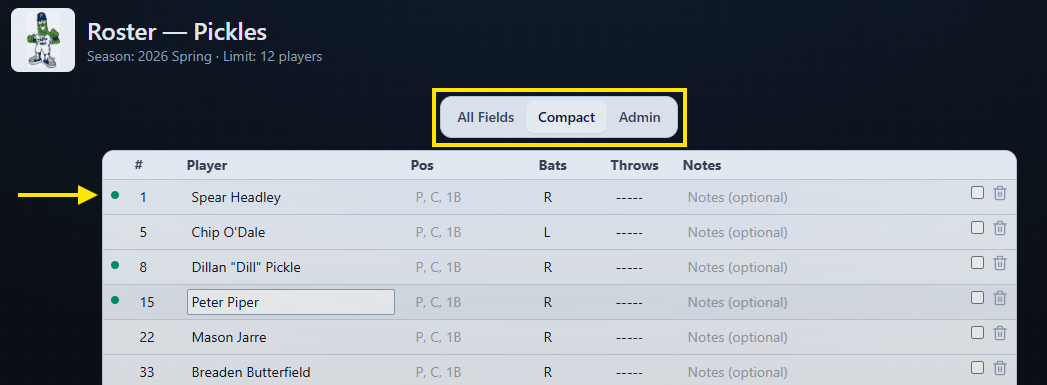
Unsaved player data is indicated with a green dot on the left side of the row. Click the save button to finalize the changes.
Save the roster#
Select Save roster below the roster table, after entering the players you want to add, or after making necessary edits.
During save, blank rows are ignored. Only rows containing a player name is saved. When the save is complete, the page reloads and displays Roster saved.
You can return to the roster at any time to add players or update their information.
If you see Roster was not saved, review the highlighted fields. An invalid contact email or date of birth can prevent the entire roster from being saved.
How Inningly uses player information#
Saved player names become available throughout the team workspace:
- The Lineup page uses them when generating defensive lineups and creating batting orders.
- The Pitching page uses them when recording workloads and reviewing pitcher availability.
- The team Overview uses them to calculate the roster count.
Some optional fields provide additional context:
- Bats appears when working with batting orders.
- Jersey number can help identify players in pitching information.
- Pos is a roster reference for coaches. It does not automatically restrict where the lineup generator can place a player.
- Uniform sizes, birth-certificate status, contact email, notes, and DOB are stored for team administration. They do not affect lineup generation or pitcher availability.
To control which defensive positions Inningly may assign to a player, use the separate player positioning settings in the Lineup Builder.
Once at least one player is saved, you can create a lineup or begin recording pitcher workload.